NIK EFEX Define – the Best Noise Reduction Software Available?
Direct answer: NIK EFEX Define stands out because it gives you more control over what the software treats as noise, rather than just applying a blanket fix. In this workflow, you can sample a noisy area by hand, help the filter learn the difference between real image detail and unwanted grain, and then clean up texture introduced during sharpening, especially in clouds and other smooth areas.
There are an awful lot of noise reduction tools about, and both Lightroom and Photoshop can handle the basics. The reason for using NIK EFEX Define here is simple: you get more say in what stays and what goes, which makes it a cracking fit for landscape work where detail matters.
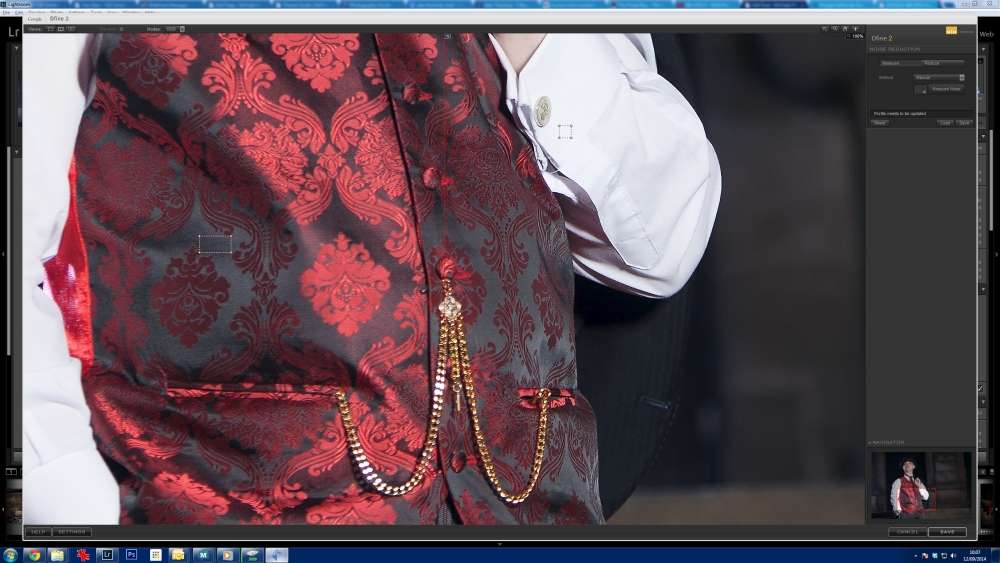
In the screenshot above, you can see a little box on the left. That area was selected with the mouse because it was noisy, then Define was told to treat it as noise. The point here is that the software can learn what is noise and what is actual image content, which gives you a more selective result than a one-size-fits-all pass.
That extra control also helps after sharpening. Once you have run the NIK EFEX Pre Sharpener, you may end up with a bit of unwanted texture or noise, especially in clouds. You can then target those areas and let Define sort them out without clobbering the rest of the image.
The video below walks through the exact workflow used on a Lake District landscape. It shows how to open the filter from Lightroom, which edit option to choose, and how the controls behave in practice.
Video summary: This walkthrough shows how NIK EFEX Define fits into a Lightroom-based editing process for a landscape image from the Lake District. It focuses on opening the plugin correctly, choosing the right edit option, and using selective noise control to tidy up problem areas without making the file look over-processed.
What Should You Do After Using NIK EFEX Define?
Once you have done your noise reduction with NIK EFEX Define, the next step is to boost contrast and work on local contrast, brightness, and saturation with Viveza. It is a fast, selective way to give the image a bit more life without going completely bonkers with global adjustments.
So there you go. Clean the noise first, deal with any sharpening side effects, then move on to the more creative tweaks once the file is nice and shipshape.
Ade McFade, CAA Licensed Pilot & Commercial Photographer
Related Posts

Driving Impressions: Key Photos Every Car Dealership Needs for Effective Marketing
What difference 12 months makes?
Jaeda Sharman 2
If You Are Good At Something, Don’t Do It For Free
Using the Godox AD600 on My First Post-Lockdown Model Photoshoot!
McFade Photographs a Ferrari California- LEEDS PHOTOS – Jan 2012
- McFade Edit of Dave Goodman’s “Chris” Shot